How to Use CryptoQuant with a Crypto Exchange Account
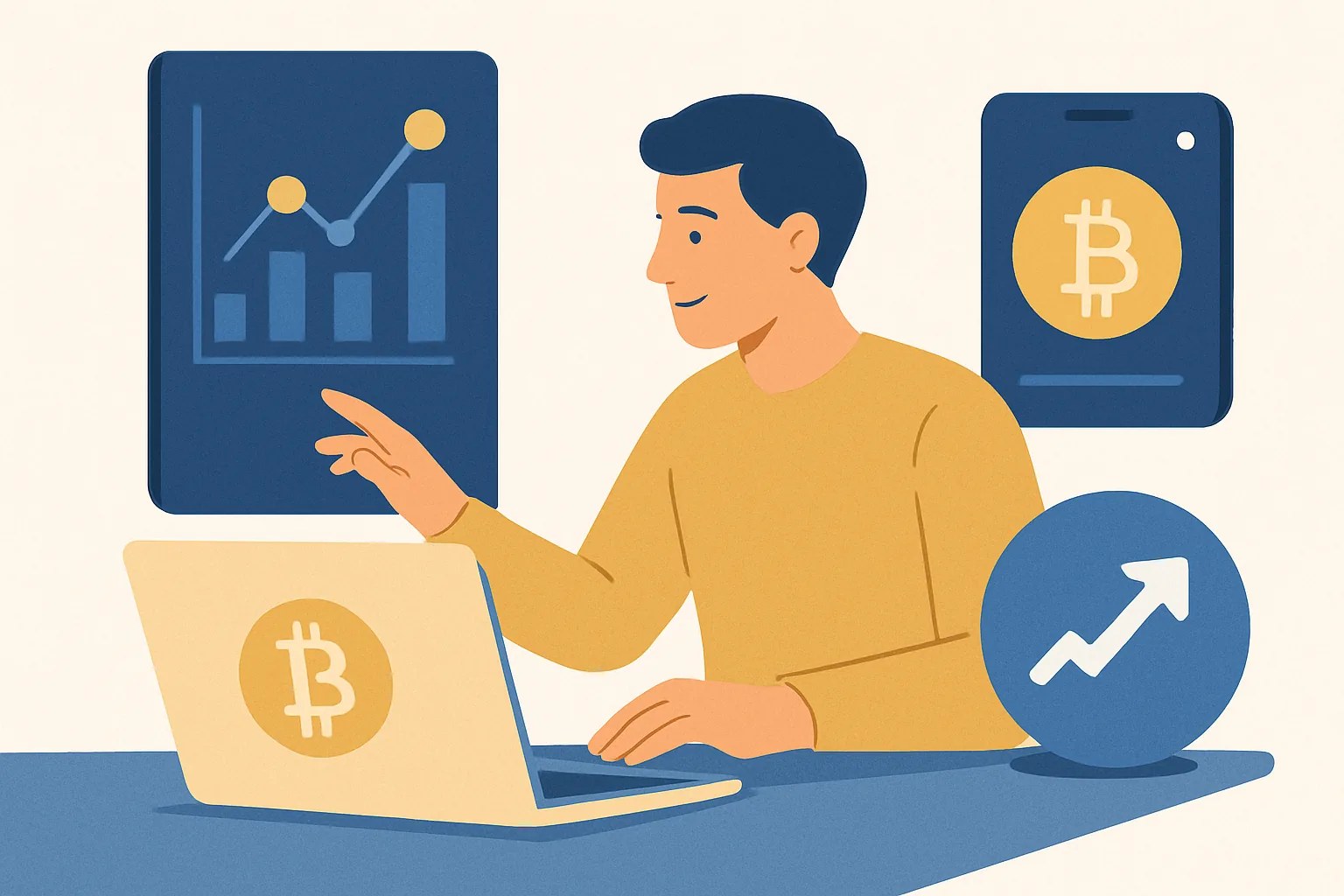
How to Use CryptoQuant with a Crypto Exchange Account
CryptoQuant is useful when you want exchange data in one place, not trade execution. That distinction matters. If you are trying to learn how to use CryptoQuant with a crypto exchange account, start with the boring part: whether your exchange account can actually be linked, and whether the connection will be read-only.
1. Check whether your exchange can be connected to CryptoQuant
Before you click anything, confirm that your exchange supports API access and that your account type allows third-party connections. Some exchanges allow spot account data but restrict derivatives, while others expose balances and market data but not full history. One account can be enough. Another cannot.
Look for the exact permissions your exchange offers. A read-only API key is the usual starting point because CryptoQuant does not need permission to place orders if you are only tracking data. If your exchange labels permissions in a different way, compare the wording carefully. “View” or “read” is fine. “Trade” and “withdraw” are not, unless CryptoQuant explicitly asks for them, which should be uncommon.
Check for regional or product limits too. An account may work for spot trading and still fail on futures data, or the reverse. Some exchanges separate subaccounts, corporate accounts, or custodial setups from standard retail accounts. That can change what CryptoQuant sees. If your exchange has separate API rules for subaccounts, note them now rather than later.
If you want a broader view of exchange account behavior, the article on crypto exchange data retention and account helps explain why some records appear quickly while older history may not. That matters when you expect CryptoQuant to show everything on day one. It may not.
2. Create or sign in to your CryptoQuant account
Open CryptoQuant in your browser and sign in. If you do not have an account yet, create one first and confirm the email address before you try to connect an exchange. Sounds basic. It saves time.
Once inside, move to the account or settings area where integrations are managed. CryptoQuant usually groups connection tools near user settings, linked exchanges, or API-related options. The exact label can change, so do not rely on memory alone. Scan the menu. Then scan it again.
Before you connect anything, clear the dashboard layout enough to spot new data later. If CryptoQuant asks you to select a workspace, market view, or watchlist, choose the one that fits your exchange account. A spot-only account should not be mixed with a futures-only dashboard unless that is the plan. One clean workspace is easier to audit.
Think of this step as setting the table before dinner. If you already know you want to compare spot balances, funding, and large exchange inflows, keep those panels close together. That way, the first sync tells you something useful instead of producing a crowded screen with no obvious pattern.
3. Generate the right access credentials from your exchange
Go to your exchange account settings and find the API management page. Create a new key pair there, and label it clearly. A name like “CryptoQuant read only May 2026” is much easier to review later than “API 1.” The label should tell you the purpose and the date. Two details are enough.
Choose read-only permissions wherever possible. If the exchange offers separate toggles for account data, market data, orders, funding, or transfers, leave trading and withdrawal access off unless CryptoQuant explicitly requires something else. That caution is not dramatic. It is standard practice. A monitoring tool should not need the keys that move money.
Some exchanges may require IP whitelisting, two-factor confirmation, or an additional permission approval step before an API key becomes active. If those options exist, record them in a note. Then keep that note near the key name. A future you will thank the present one.
If you are also deciding how exchange tools handle order-book data, the guide on how to read a crypto exchange pairs well with this process because CryptoQuant dashboards often make more sense once you know how liquidity and order flow are normally displayed. Not all signals mean the same thing. A large red number is not always a warning.
4. Connect the exchange account inside CryptoQuant
Return to CryptoQuant and open the exchange connection page. Choose your exchange from the list first, then paste the API key and secret into the correct fields. Do not swap them. That mistake is common and annoying.
If CryptoQuant asks for an API passphrase, enter the exact passphrase you created at the exchange. If it asks for a network or account type, match the option to the account you actually use. Spot is not futures. Futures is not spot. The labels matter because the sync depends on them.
After you submit the credentials, CryptoQuant should confirm the connection or show an error message that points to permission issues, expired keys, or a mismatch in account type. Read the message carefully. A small typo can block the link. So can an exchange-side security check that has not been completed yet.
This is the point where the phrase "how to use CryptoQuant with a crypto exchange account" stops being theoretical and becomes a setup task. If the connection succeeds, save the configuration and give the linked account a name you can recognize later. “Binance spot main” is better than “connection 2.” Clarity saves minutes every week.
5. Choose the exchange data you want to track
Once the connection is live, decide what you want CryptoQuant to monitor. For most users, the first items are balances, open positions, deposits, withdrawals, and selected market data. Monitoring is the point. Not execution. Do not try to turn a data screen into a trading robot.
If you trade actively, open positions and funding data may be the first panels to inspect. If you mainly hold coins, balances and deposit or withdrawal activity may matter more. A futures trader and a spot holder do not need the same view. That is normal. One account can tell two different stories.
CryptoQuant can also be useful for spotting exchange-level activity that your own account history does not fully explain. Large inflows, sudden outflows, and changes in funding can shape the backdrop for your trades even if your own order size is small. If you want to see how funding behaves on the exchange side, the article on what crypto exchange funding rate means fits naturally here.
Some users only need one or two datasets. Others want several panels at once. Keep it simple at first. If CryptoQuant lets you save presets or watchlists, create a minimal one with the 3 or 4 indicators you check most often. That keeps the dashboard readable when the market gets loud.
6. Use CryptoQuant signals alongside your exchange account
CryptoQuant is most useful when you read the signal in one window and act manually in another. See a large deposit spike? Check your exchange account yourself. Spot a balance shift or a rise in funding pressure? Open the exchange, verify your position, and decide what to do next. No automation is needed for this workflow.
That manual step matters because exchange data can lag or arrive in chunks. A dashboard may show the event first, while the exchange account confirms it seconds or minutes later. If you trade futures, this gap can change your decision. If you hold spot, the same gap may be harmless. Context again.
One practical habit is to pair CryptoQuant with your normal exchange screens. For example, if CryptoQuant shows rising exchange inflows, check your own limit orders and position size before doing anything. If the signal matches your existing plan, act in the exchange account. If it does not, wait. A missed entry is often cheaper than a bad one.
If you already use alerts, the article on how to connect TradingView alerts can help you think about alert timing and decision flow, even though CryptoQuant is a different tool. The common thread is simple: an alert is only useful if you know exactly what you will check next.
Use the exchange account itself for the final action. That keeps your record clear. CryptoQuant shows the clue. The exchange confirms the move. Your journal or notes should record both sides, especially if you plan to compare entries across 5 or 10 trades later.
7. Secure, audit, and update the connection
Review the permissions on your API key at least once after setup. If you granted anything beyond read-only access, ask whether that permission is still needed. In many cases, it is not. Remove unused access. Then rotate the key on a schedule that matches your own risk tolerance.
Audit the linked account names inside both CryptoQuant and the exchange. If you have more than one account, make sure each label is obvious. A mislabeled key can create confusion during a busy market session, and confusion is expensive. One wrong click can send you to the wrong account page.
Watch for sync failures, stale data, or missing fields. These issues can happen after an exchange updates its API, changes permissions, or adds a new security prompt. If the data stops updating, check three things in order: the API status on the exchange, the permission settings, and the connection status inside CryptoQuant. That sequence solves many problems without guesswork.
For account security more broadly, the article on what changed in crypto exchange travel gives useful context on why exchanges may ask for extra verification or restrict certain flows. A surprise prompt is easier to handle when you expect one. It is not glamorous, but it is real.
If your exchange starts returning delayed or partial data, do not keep refreshing blindly. Recheck the key, re-save the connection, and confirm whether the exchange has a maintenance notice. If the problem remains, revoke the key and create a new one with a fresh label. Three steps are usually enough. Then test again.
Finally, delete old keys you no longer use. A forgotten API key is still access. That is the whole problem. Keep the CryptoQuant link list short, keep the permissions narrow, and check the exchange account after any security change so you do not miss a broken connection for days.
HYIP Articles


Random quote about money
"Не почитай денег ни больше, ни меньше, чем они того стоят; это хороший слуга и плохой господин."
Interesting posts in other sections of the blog










 ↑
↑
* to search the proxy database, just enter a country name, e.g. Russia, USA, Thailand